
1
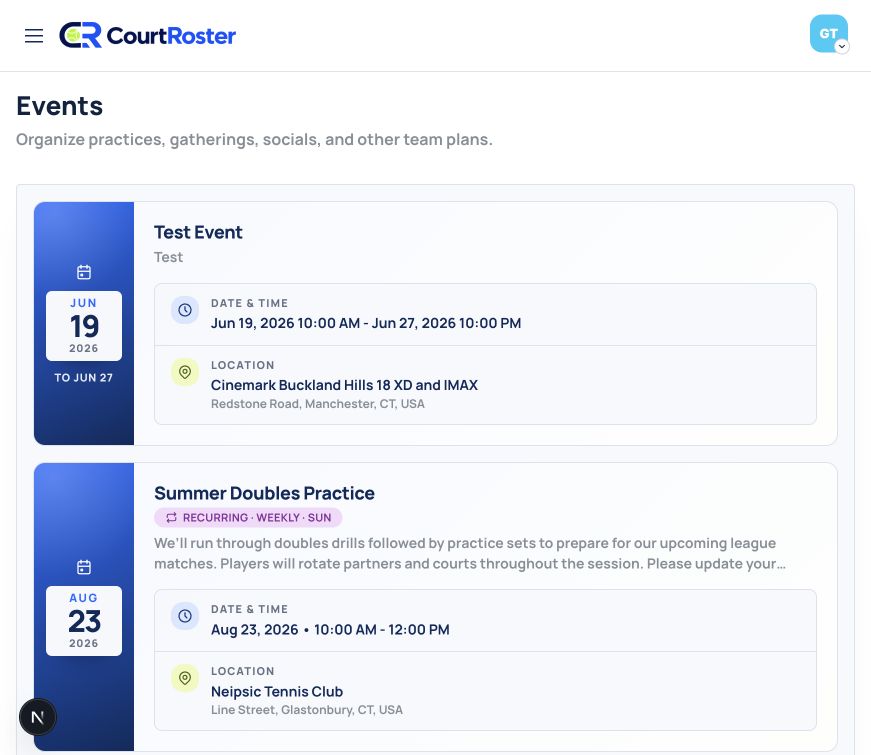
Find the availability request
- Open the availability request from the email, text message, or app notification sent by your captain.
- You can also sign in, select your team, and open Events to find the scheduled event.
- Select the event card that matches the request.
2
Review the event
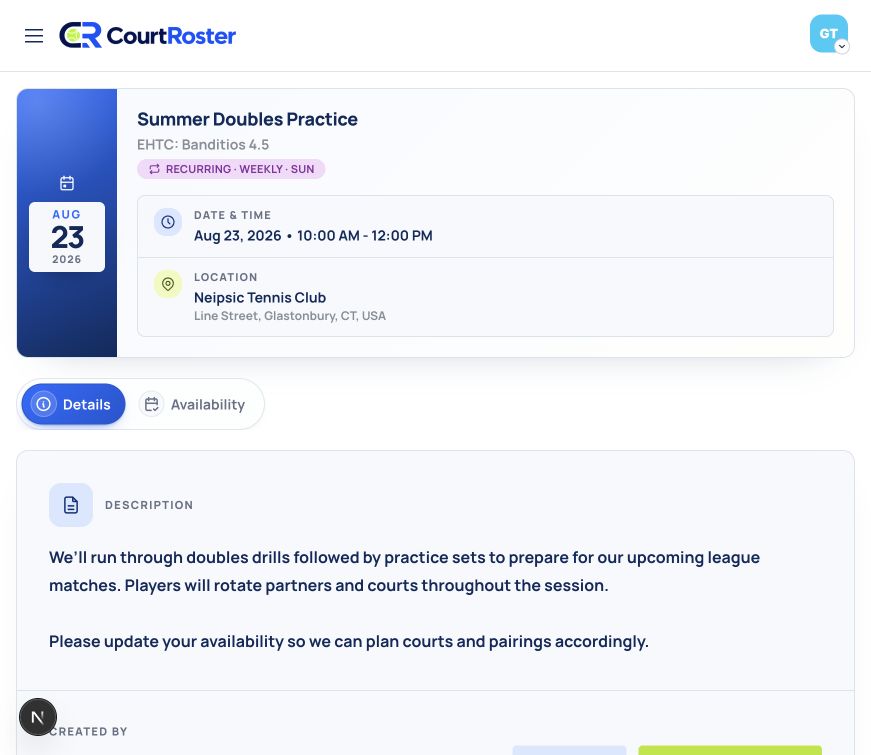
- Review the event description, recurrence, date and time, and location.
- Select the Availability tab beneath the event card.
- Confirm that the availability panel is connected to your linked player profile.
3
Choose your response
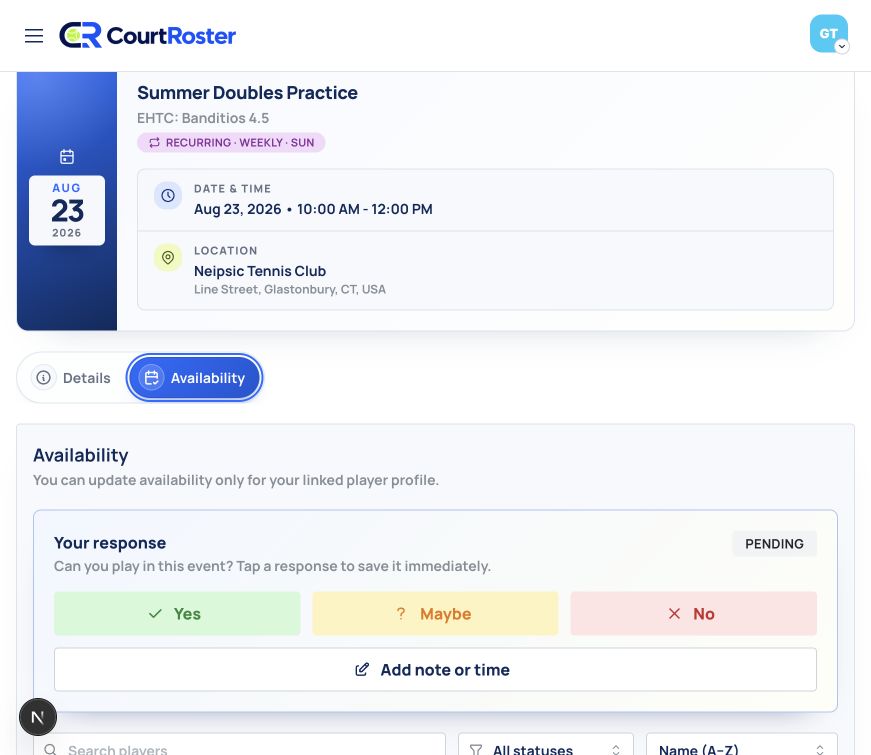
- Choose Yes, Maybe, or No. Your selection saves immediately.
- Select Add note or time when your captain needs context, such as a late arrival.
- Open the same event and choose a new response if your plans change.
Helpful tip
Update your availability as soon as plans change so your captain is working from the current roster status.
Before you continue
Captains configure automatic reminder schedules. Once you respond, you are no longer treated as awaiting a response for that request.