
CourtRoster logo
Open a ticketOpen CourtRoster
All player guides
Lineups
Player guide

Read a published lineup

Open the latest published lineup and quickly find where, when, and with whom you are playing.

3 min read

Team member

In this guide

1. Open the lineup2. Find your assignment
1

Open the lineup

  1. Open the lineup notification your captain sent, or sign in and select your team.
  2. Select Matches, open the correct match, and choose the Lineup tab.
  3. Confirm that the lineup status is Published. Draft lineups are visible only to team admins and captains.
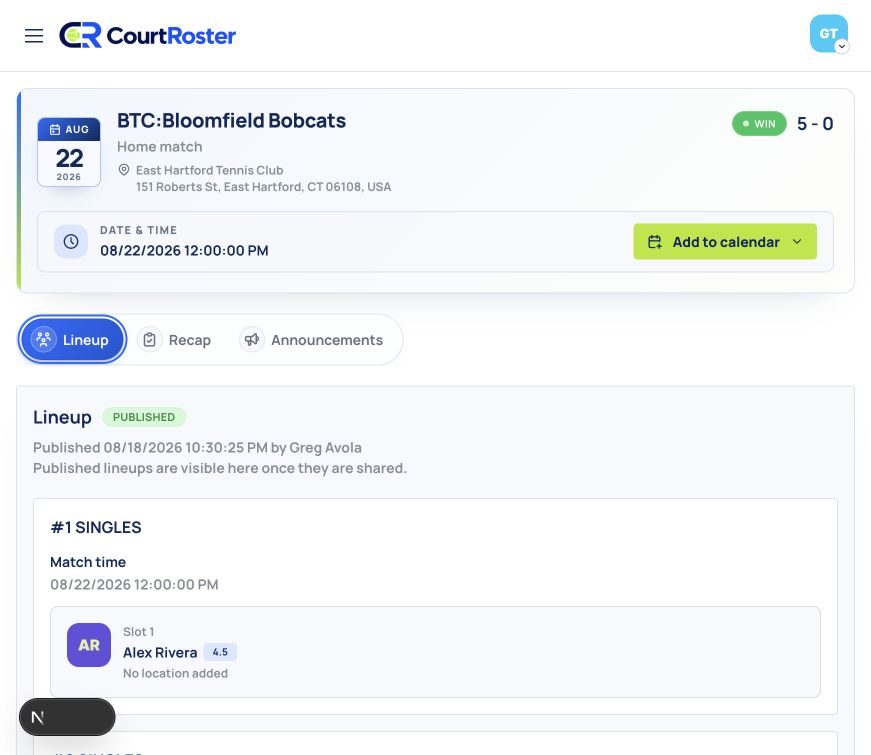
Player view of a published match lineup
Published lineups show each court and its assigned players.Captured from the live CourtRoster interface

Before you continue

If the page says the lineup is still being prepared, your captain has not published it yet.

2

Find your assignment

  1. Locate your name under the assigned singles or doubles court.
  2. For doubles, review your partner and the other players assigned to that court.
  3. Check the scheduled start time, match location, and any note from your captain.
  4. If your name is not listed or an assignment looks wrong, contact your captain before match day.

Helpful tip

A captain may republish a lineup after making changes. Use the newest notification or reopen the match to see the current version.

Keep going

Related guides

Confirm your lineup spot

Use your personal confirmation link to accept or decline a court assignment.

Read a match recap

Open a published match recap and review the result, summary, photos, and court details.

Respond to availability reminders

Find an availability request, review the event, and tell your captain whether you can attend.

CourtRoster logo

Smarter team management for tennis and pickleball.

© Greg Avola 2026

Google Play
AboutHelpSupportPrivacyTerms