
CourtRoster logoOpen CourtRoster
All guides
Teams

Add a team

Start a new team with the details CourtRoster uses for the roster, schedule, and home/away match logic.

4 min read

Any signed-in user

In this guide

1. Open the team creator2. Enter the team details3. Choose the right visibility
1

Open the team creator

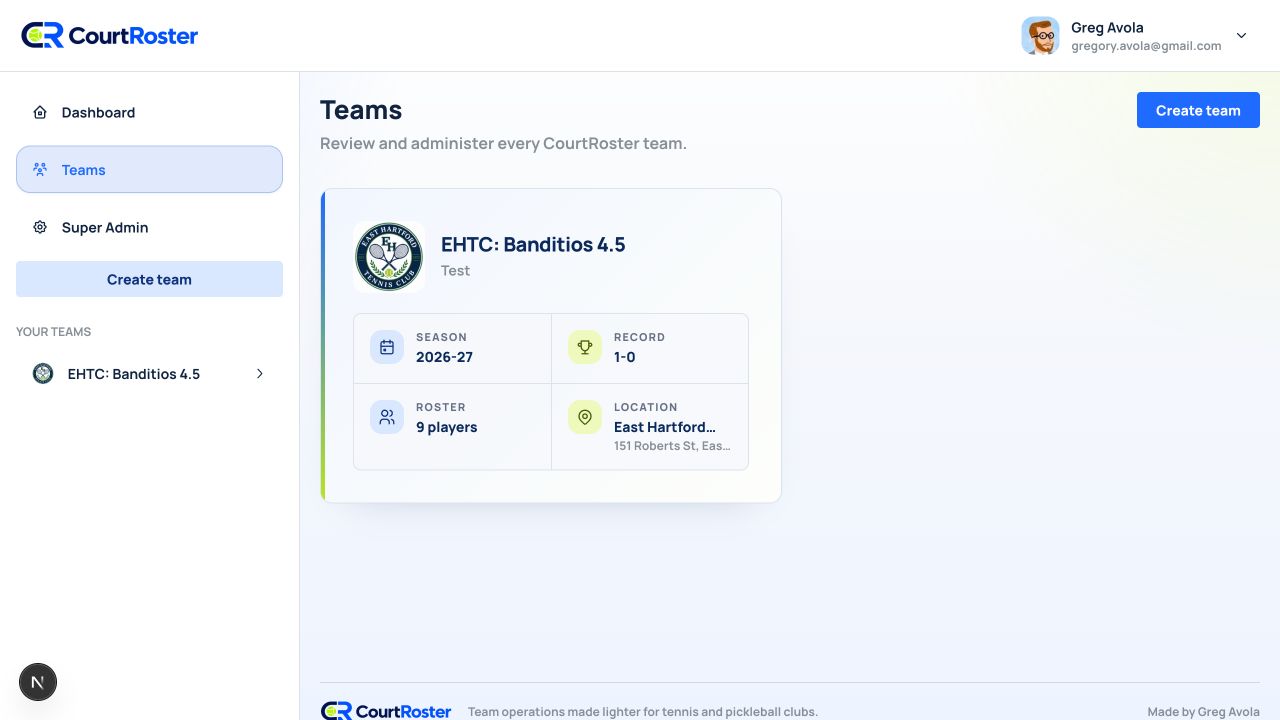
You can create a team from the Teams page or from the left navigation on desktop.

  1. Sign in and select Teams in the main navigation.
  2. Select Create team. The same button also appears in the sidebar above Your teams.
  3. The Create team dialog opens without leaving the current page.
app.courtroster.com
CourtRosterGA
DashboardTeamsHudson AcesOverviewRosterAccessMatchesEventsAnnouncements

Teams

Manage every team you belong to.

Create team
HAHudson AcesSpring 2026 · 12 players
RPRiverside PickleballSummer 2026 · 8 players
Select Create team from the Teams page.Illustrated from the current CourtRoster interface
2

Enter the team details

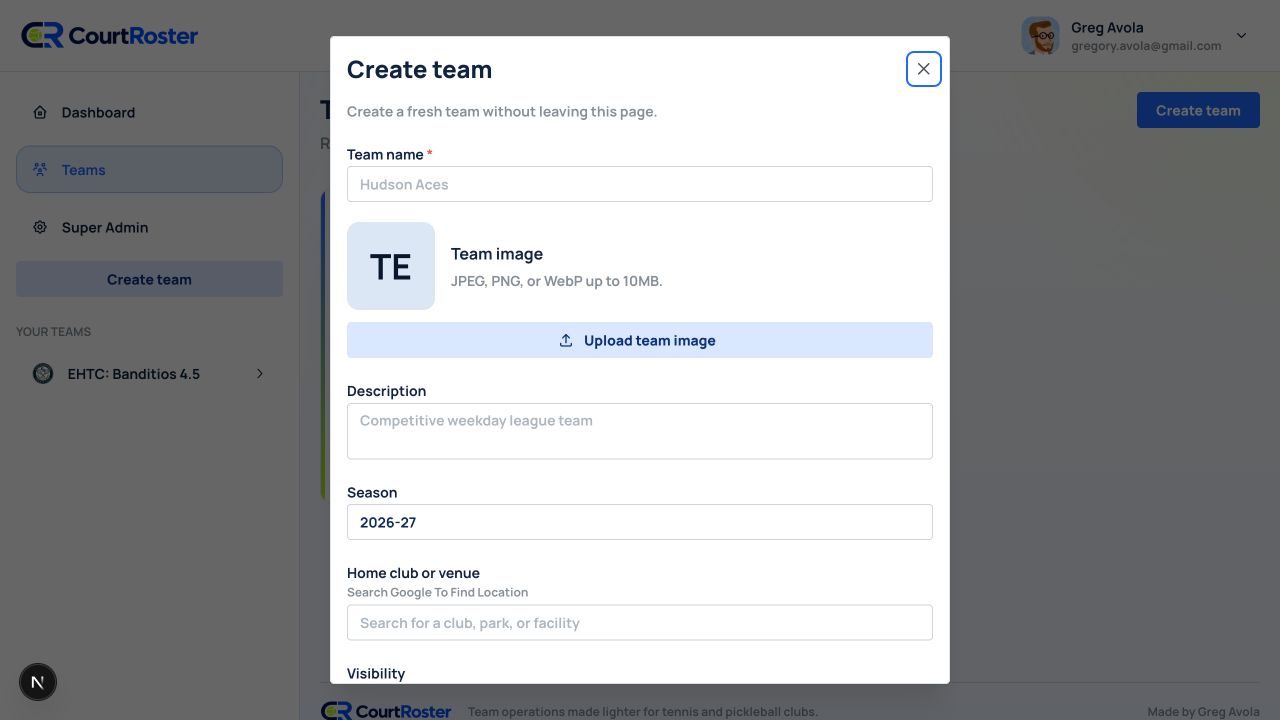
  1. Enter a clear Team name, such as Hudson Aces 4.0. This is the name players see throughout CourtRoster.
  2. Optionally upload a square team image and add a short Description.
  3. Enter the Season label. For example: 2026 Spring or 2025–26.
  4. Search for the home club or location and select an item from the Google Places suggestions.
  5. Choose Private, Invite only, or Public under Visibility.
  6. Select Create team. CourtRoster opens the new team overview when creation finishes.
app.courtroster.com
CourtRosterGA
DashboardTeamsHudson AcesOverviewRosterAccessMatchesEventsAnnouncements
Create team×

Set up the core team details here.

Team nameHudson Aces 4.0
SeasonSpring 2026
DescriptionWeeknight league team
Home club or locationRiverside Tennis Club ✓
VisibilityPrivate
CancelCreate team
Example: a private Spring 2026 team based at Riverside Tennis Club.Illustrated from the current CourtRoster interface

Helpful tip

A selected home location lets CourtRoster infer whether a newly added match is home or away.

3

Choose the right visibility

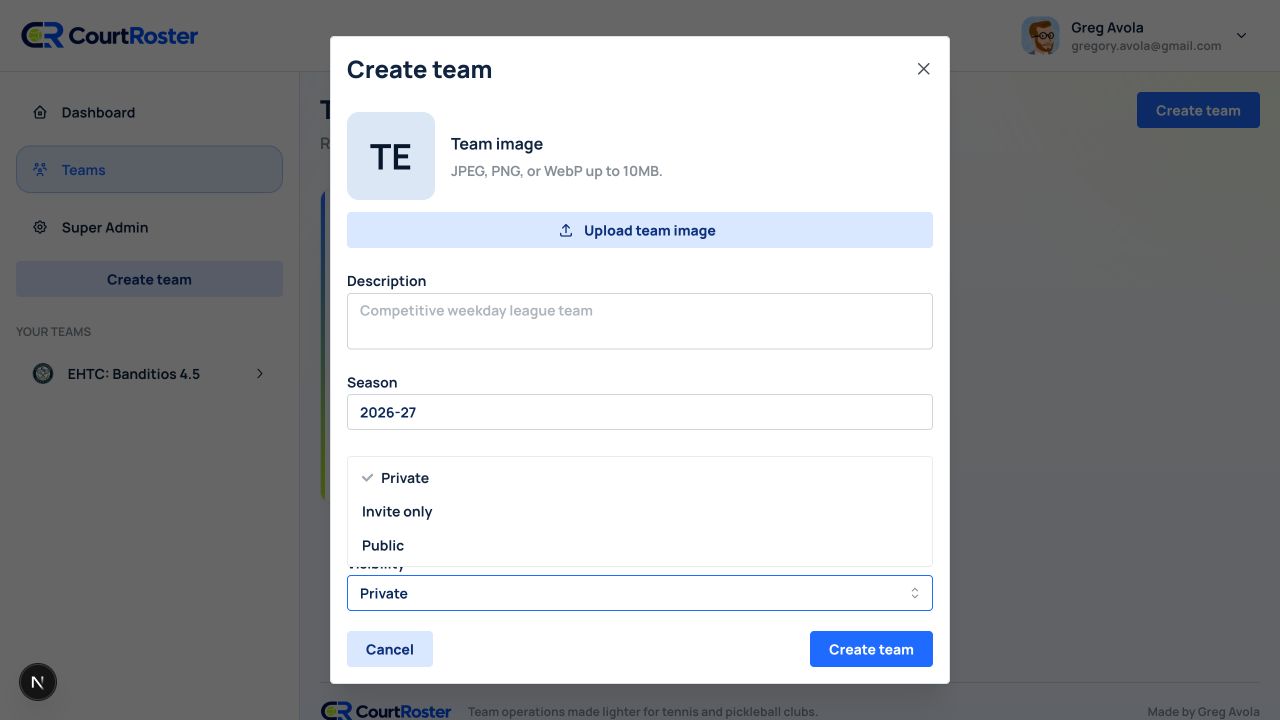
  1. Private is the safest default for a roster that should only be visible to existing members.
  2. Invite only is useful when players will join through a link or team code.
  3. Public is appropriate only when the team should be discoverable more broadly.
Before you continue

Team name is required. Location and season can be updated later, but adding them now makes the schedule easier to manage.

Keep going

Related guides

Edit a team

Update a team name, image, description, home location, or visibility.

Add players to a roster

Search for an existing player, link an account, or create a roster spot and send a claim invite.

Add matches

Schedule an opponent, venue, match format, and one or more start times.

CourtRoster logo

Tennis and pickleball team management with a cleaner workflow for captains, clubs, and every player on the roster.

Navigation

HomeAboutHelp CenterSupportPrivacy PolicyTerms of Use

Download

App StoreGoogle Play

Download CourtRoster on iPhone and Android.