1
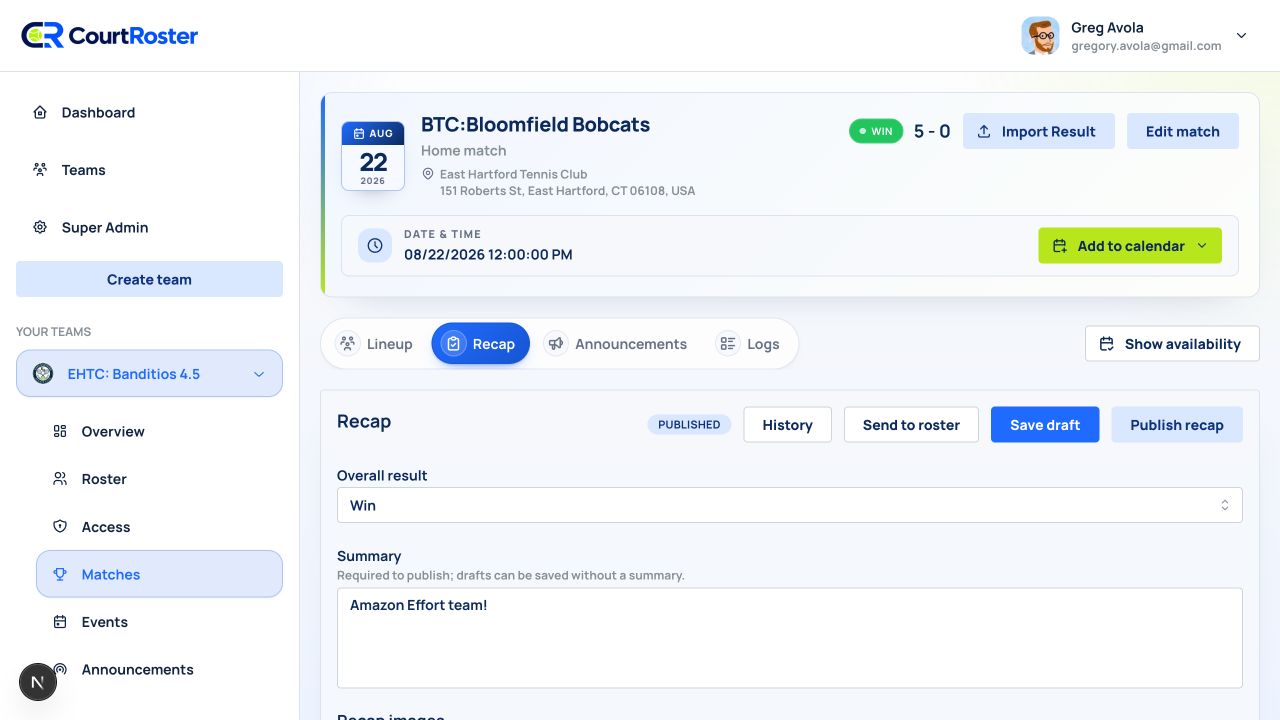
Open the current season schedule
- Select your team, then select Matches.
- Confirm the current season is selected. Add match is unavailable while viewing a past season.
- Select Add match.
2
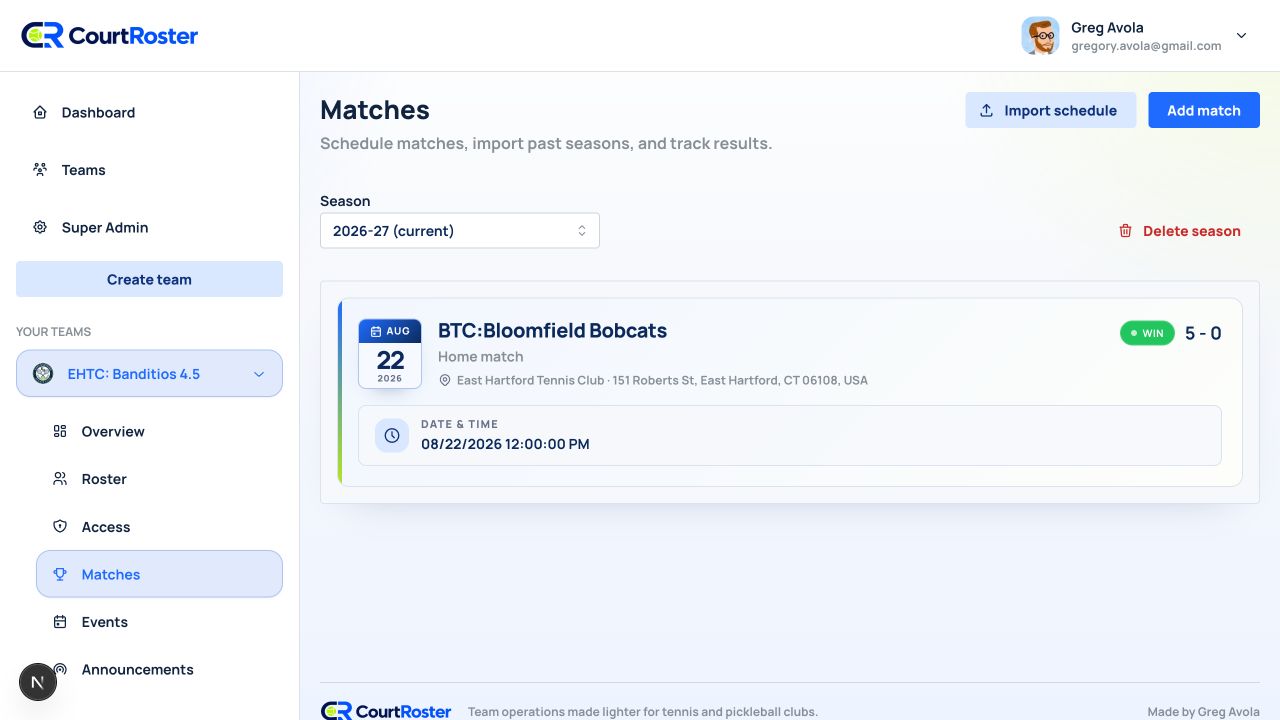
Set the match details
- Enter the Opponent name.
- Search for Match location and select a venue from Google Places, or leave it blank if the venue is TBD.
- Choose the Match type: 1 doubles; 3 doubles; 2 singles, 3 doubles; or 1 singles, 3 doubles.
- Choose the first Start date and time. Use the plus button beside Start times if courts begin in more than one wave.
- Select Create match. CourtRoster opens the match detail page.
Helpful tip
When you select a venue, CourtRoster compares it with the team’s home club to set home or away automatically. If you leave the venue blank, choose home or away yourself.
Before you continue
A venue must be selected from the Google Places list. Unselected text cannot be saved as a match location; leave the field blank for TBD.
3
Review before contacting players
- Check the opponent, venue, format, and start times on the match Overview tab.
- If something is wrong, select Edit match before sending availability.
- When the match is ready, continue to the Availability tab.