CourtRoster logoOpen CourtRoster
All guides
Availability

Send availability

Ask the full active roster who can play, with a unique response link delivered by email, SMS, or the app.

6 min read

Team admin or captain

In this guide

1. Open the Availability tab2. Review delivery and send3. Track responses and follow up
1

Open the Availability tab

  1. Open the team’s Matches section and select the match.
  2. Select Availability in the match tabs.
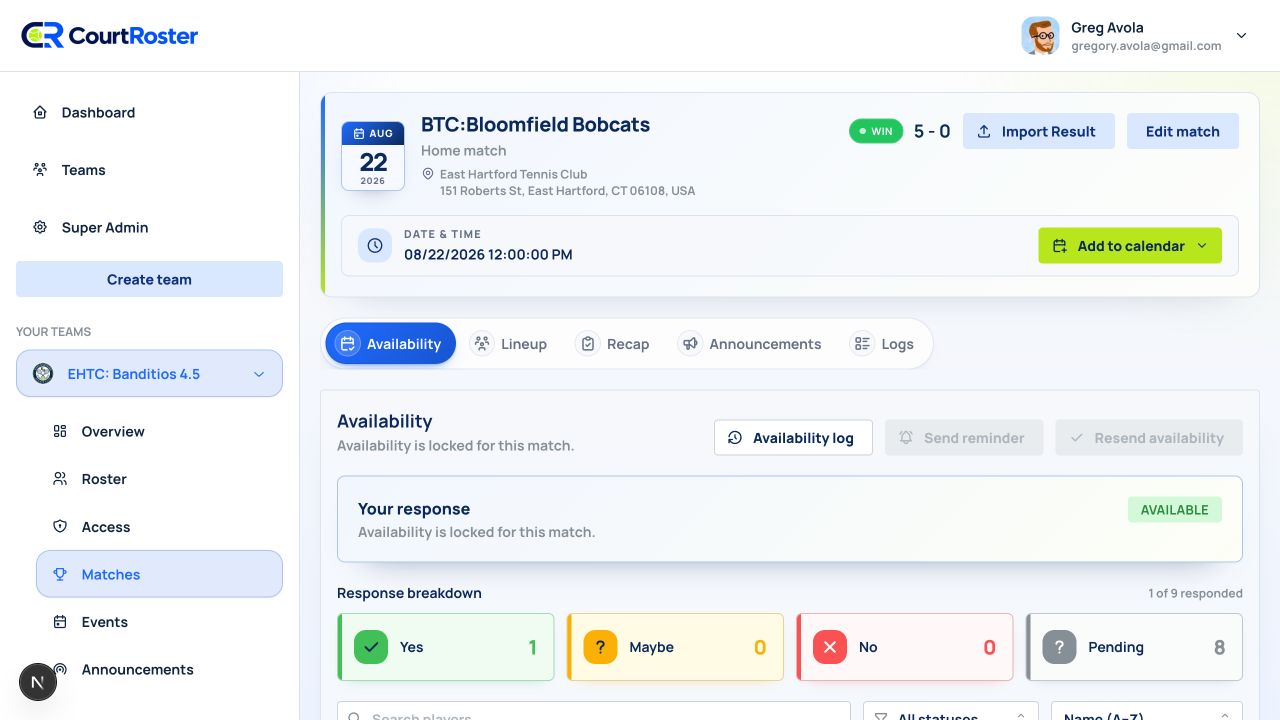
  3. Review the roster. Players without a response appear as Not responded.
  4. Select Send availability.
app.courtroster.com
CourtRosterGA
DashboardTeamsHudson AcesOverviewRosterAccessMatchesEventsAnnouncements

Availability

Send this match to the full roster.

Send availability
3 Yes1 Maybe2 No6 Not responded
AMAlex MorganLast viewed 9:14 AMYes
JTJordan TaylorAwaiting replyNot responded
SKSam KimPrefers 7:00 PMMaybe
The response summary updates as players choose Yes, Maybe, or No.Illustrated from the current CourtRoster interface

Before you continue

Add roster players before sending. Availability cannot be sent after lineups are live or while the request is otherwise locked.

2

Review delivery and send

  1. Review Delivery channels. CourtRoster shows how many players can receive Email, SMS, and App notifications.
  2. Optionally add a Message header, such as “Please respond by Friday at noon.”
  3. For a safe preview, choose Send only to me, then select Send test email.
  4. Optionally turn on automatic reminders. Test sends do not configure reminders.
  5. Select Send availability. Each roster player receives a unique magic link using their eligible channels.
app.courtroster.com
CourtRosterGA
DashboardTeamsHudson AcesOverviewRosterAccessMatchesEventsAnnouncements
Send availability×
Delivery channels

Eligible channels for the current roster.

Email 11 SMS 8 App 6
Message headerPlease respond by Friday at noon.
CancelSend availability
Check delivery coverage and optionally send yourself a test first.Illustrated from the current CourtRoster interface

Helpful tip

Players with both email and phone information may receive more than one notification channel, but all channels point to the same response.

3

Track responses and follow up

  1. Return to Availability to see Yes, Maybe, No, and Not responded totals.
  2. Use search, status filters, and sorting to find a player quickly.
  3. If automatic reminders are off, select Send reminder to contact only eligible players who still have not responded.
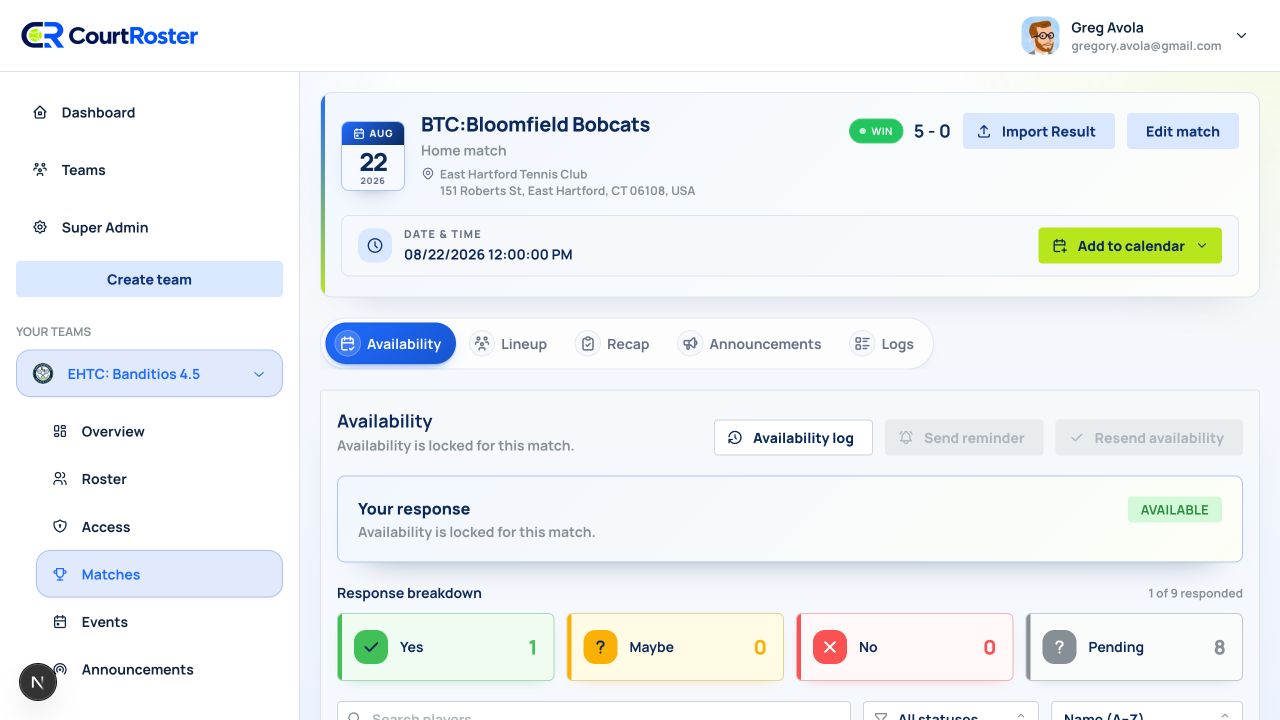
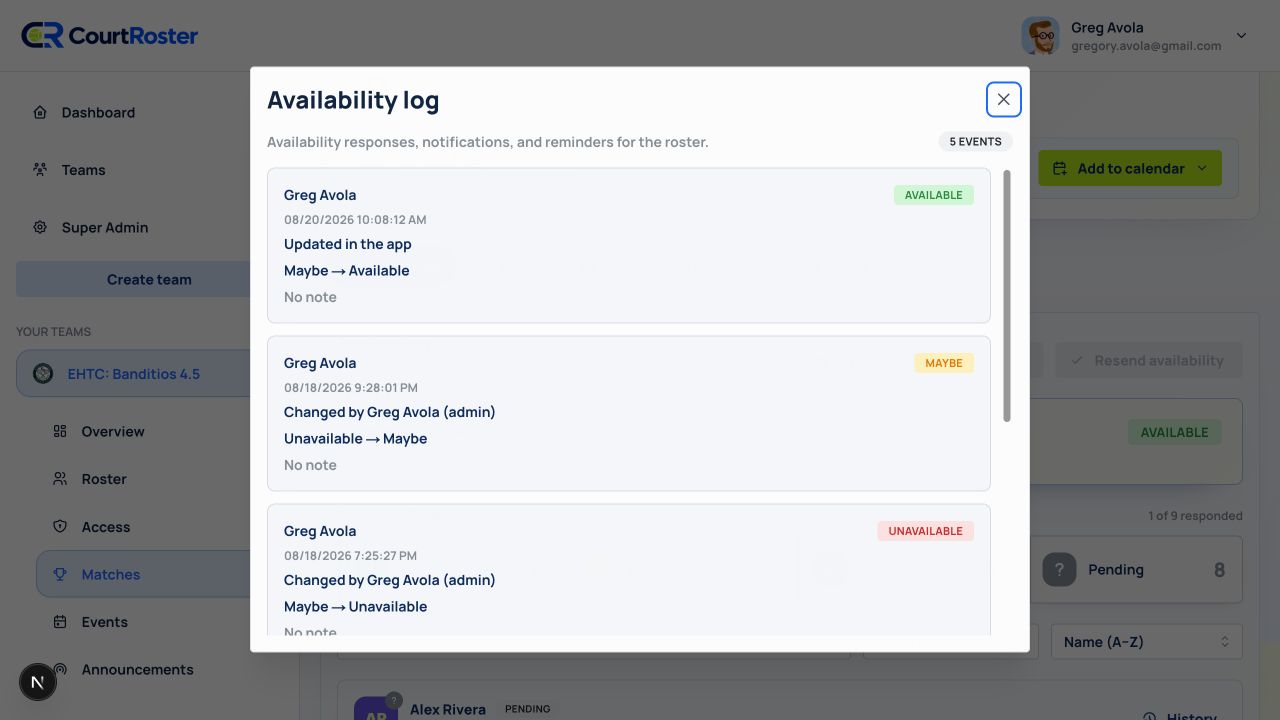
  4. Use Availability log for delivery, reminder, and response history.
Before you continue

A resend may be temporarily unavailable because of the resend cooldown. If automatic reminders are enabled, use the scheduled reminders instead of resending the full request.

Keep going

Related guides

Add matches

Schedule an opponent, venue, match format, and one or more start times.

Add players to a roster

Search for an existing player, link an account, or create a roster spot and send a claim invite.

Create and send a recap

Complete a match, record court results, publish the recap, and send it to the roster.

CourtRoster logo

Tennis and pickleball team management with a cleaner workflow for captains, clubs, and every player on the roster.

Navigation

HomeAboutHelp CenterSupportPrivacy PolicyTerms of Use

Download

App StoreGoogle Play

Download CourtRoster on iPhone and Android.