
1
Open the roster
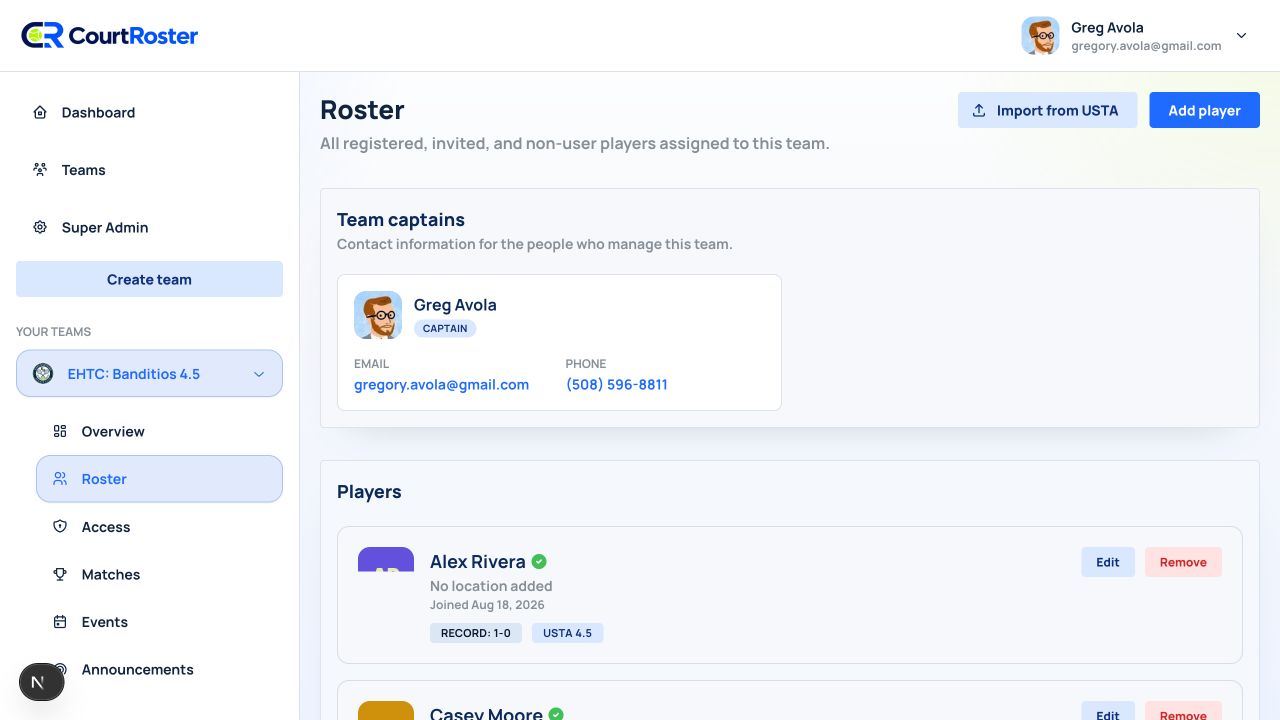
- Select your team, then select Roster in the team navigation.
- Select Add player at the top of the page.
- Keep Role set to Player. Choose Viewer only for someone who follows updates but should not appear in the roster, lineups, or availability checks.
2
Search before creating
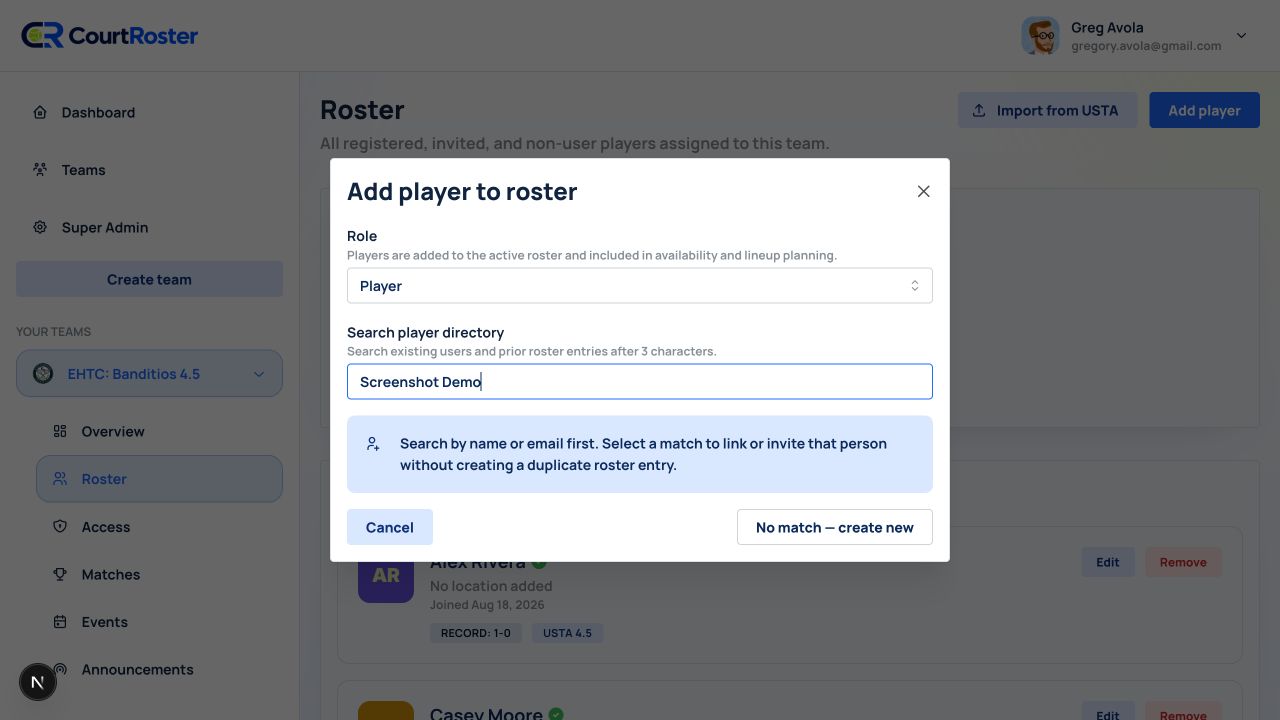
- Search by the player’s name or email address.
- If the correct person appears, select the result. CourtRoster can immediately link an existing user or reuse a prior roster identity.
- If no correct result appears after the search completes, select No match — create new.
Helpful tip
An existing CourtRoster account may be linked immediately. A prior unclaimed roster entry still receives a claim invitation.
3
Create a new roster spot
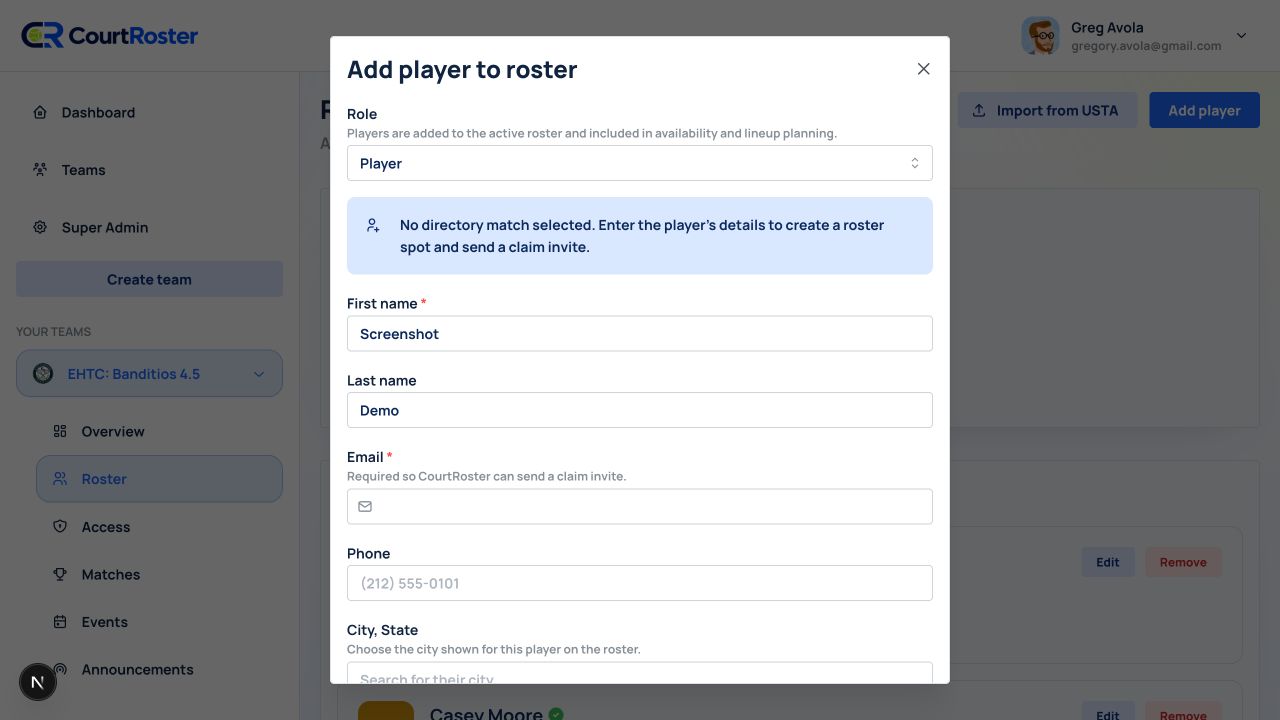
- Enter First name and, if available, Last name.
- Enter an Email address. It is required so CourtRoster can send the join link and let the player claim the roster spot.
- Optionally enter the player’s phone number for SMS availability and lineup messages.
- Optionally search for City, State and select a Google Places result.
- Select Add player and send invite. CourtRoster adds the roster spot and sends the claim invitation.
Before you continue
Typing a city is not enough—if you enter a location, choose a suggestion before saving.