
CourtRoster logoOpen CourtRoster
All guides
Recaps

Create and send a recap

Turn final scores, court notes, and photos into a published match recap, then notify the team.

8 min read

Team admin or captain

In this guide

1. Mark the match complete2. Write and publish the recap3. Send the published recap
1

Mark the match complete

  1. Open the match and select Recap.
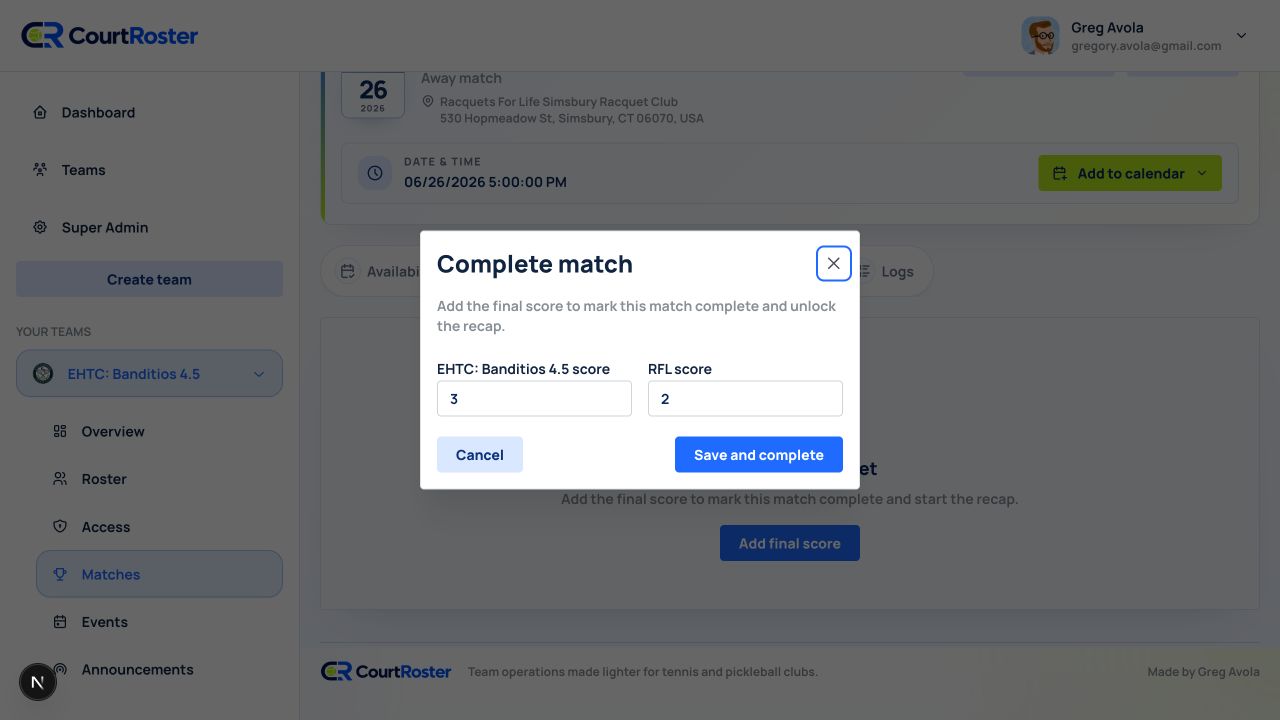
  2. If the match is not complete, select Complete match.
  3. Enter your team’s score and the opponent’s score, then confirm. Both scores are required.
app.courtroster.com
CourtRosterGA
DashboardTeamsHudson AcesOverviewRosterAccessMatchesEventsAnnouncements
Complete match×

Enter the final team score before creating the recap.

Hudson Aces Score3
Riverside Racquets Score1
CancelComplete match
A recap becomes available after the match is marked complete.Illustrated from the current CourtRoster interface
2

Write and publish the recap

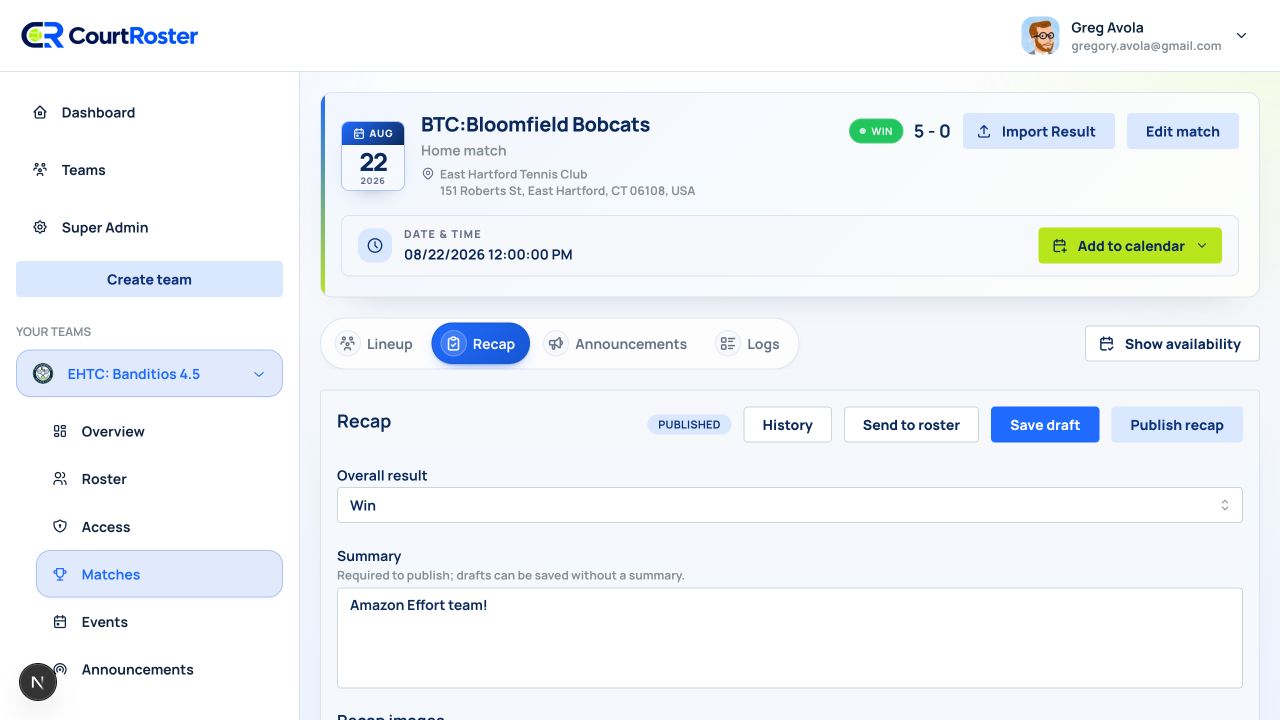
  1. Choose the Overall result.
  2. Write a Summary of at least 10 characters. Include the headline result and a useful team takeaway.
  3. Optionally upload match photos.
  4. For each court, enter the Set score, Result, and an optional Court note. Lineup players appear on their assigned courts.
  5. Select Save draft if you are still working, or Publish recap when it is ready for players to view.
app.courtroster.com
CourtRosterGA
DashboardTeamsHudson AcesOverviewRosterAccessMatchesEventsAnnouncements

Recap

PUBLISHED
Send to roster Save draft
Overall resultWin
SummaryA strong 3–1 home win, led by two straight-set doubles victories.
Court 1 · DoublesAlex Morgan / Jordan Taylor6–4, 7–5 Win
Example recap with an overall win and court-by-court detail.Illustrated from the current CourtRoster interface

Helpful tip

Publishing makes the recap visible; it does not automatically email the roster.

3

Send the published recap

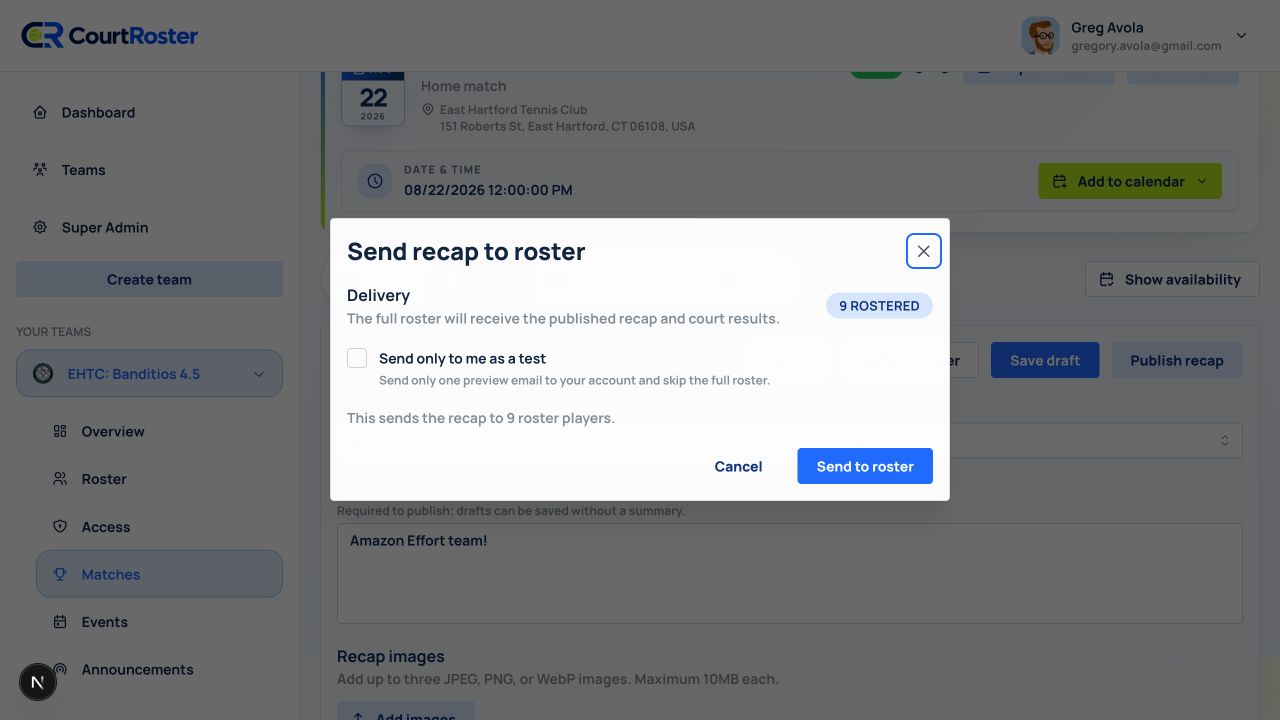
  1. After publishing, select Send to roster.
  2. Review the recipient and email-delivery summary.
  3. Optionally add a Message header for context above the recap.
  4. Use Send only to me to preview the email, or select Send to roster for the full delivery.
app.courtroster.com
CourtRosterGA
DashboardTeamsHudson AcesOverviewRosterAccessMatchesEventsAnnouncements
Send recap to roster×
Delivery

Email the published recap to eligible roster players.

Email · 11 players
Message headerGreat team win tonight—full results below.
CancelSend to roster
Send to roster appears only after the recap is published.Illustrated from the current CourtRoster interface

Before you continue

If Send to roster is missing, confirm that the match is complete and the recap status is Published.

Keep going

Related guides

Add matches

Schedule an opponent, venue, match format, and one or more start times.

Send availability

Send a match availability request, preview delivery coverage, and configure reminders.

Create announcements

Publish a team or match announcement and choose email, text, and push delivery.

CourtRoster logo

Tennis and pickleball team management with a cleaner workflow for captains, clubs, and every player on the roster.

Navigation

HomeAboutHelp CenterSupportPrivacy PolicyTerms of Use

Download

App StoreGoogle Play

Download CourtRoster on iPhone and Android.