
1
Create a competitive pickleball group
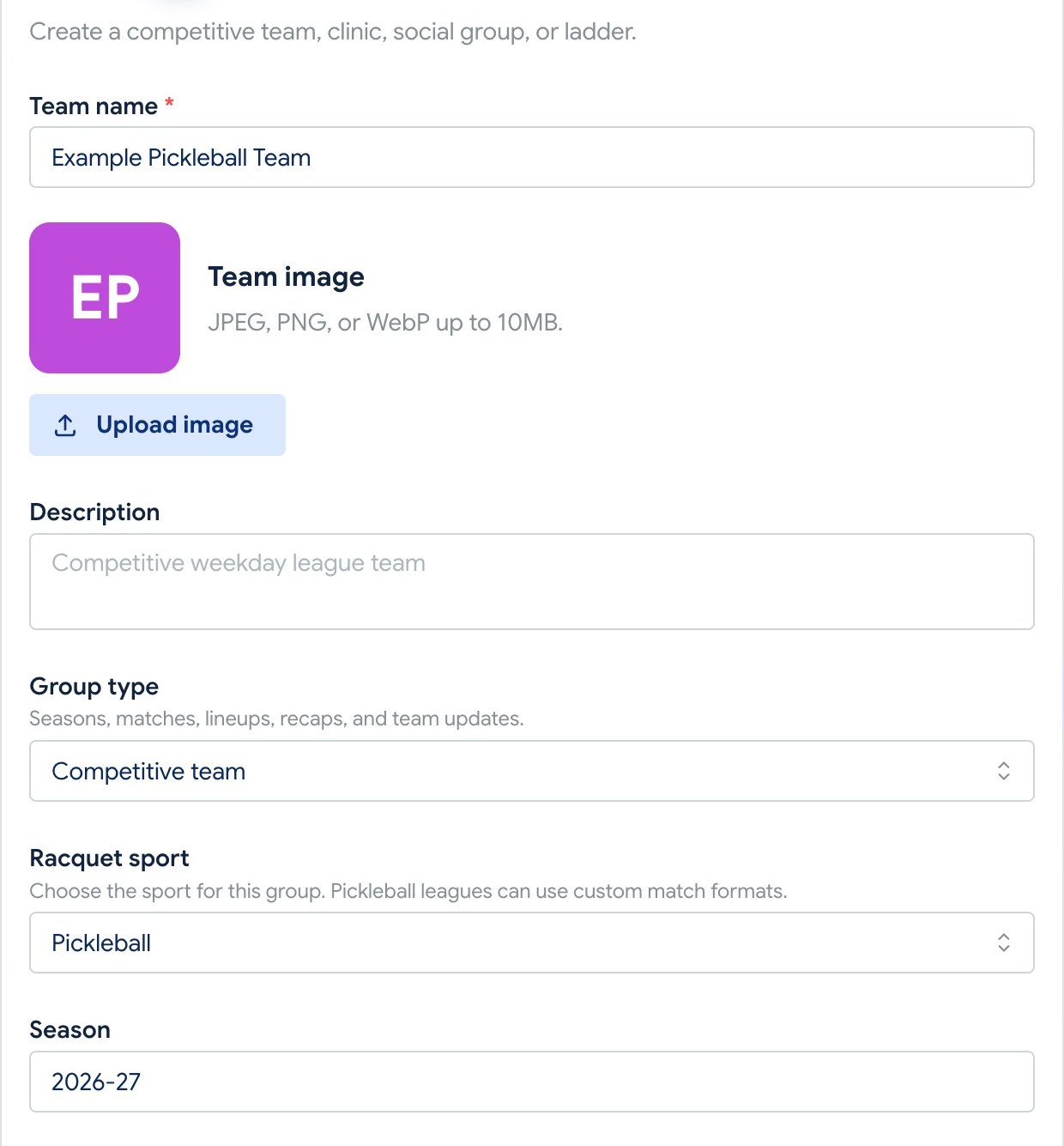
- From Teams, select Create team and choose Competitive team under Group type.
- Choose Pickleball under Racquet sport, then complete the group name, season, visibility, and other details.
- Add players to the roster before building a match lineup.
Helpful tip
Tennis is the default sport on a new group, so select Pickleball before creating it.
2
Set the match format
- Open the group’s current season Matches page and select Add match.
- Enter the opponent, venue, and start time. A venue can be left blank when it is still to be determined.
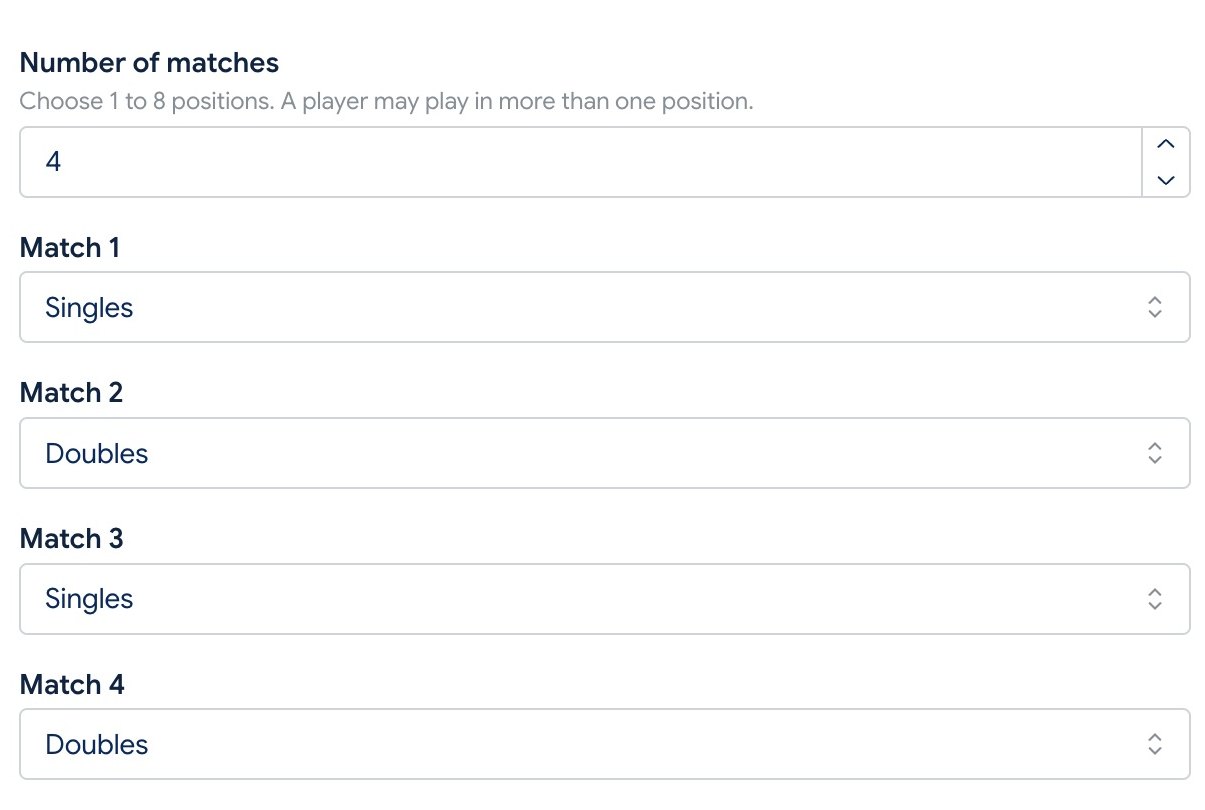
- Set Number of matches from 1 to 8. For Match 1, Match 2, and each later position, choose Singles or Doubles.
- Select Create match. The position order and types become the lineup template for that match.
Helpful tip
You can mix singles and doubles in any order. Each singles position has one player slot; each doubles position has two.
3
Build and send the lineup
- Open the match and use Availability to see who can play before assigning positions.
- Open Lineup and assign players to each position. The same player can appear on several different pickleball positions, but cannot fill both slots of one doubles position.
- Save the draft. Fill every normally played position before selecting Publish lineup.
- After publishing, select Send to roster to notify players. A player assigned to multiple positions receives a separate confirmation link for each assignment.
Before you continue
Changing a match’s format resets its draft lineup positions. If a lineup is already published, unpublish it before changing the format.